Use TechDash with Claude or ChatGPT
Connect Claude Desktop or ChatGPT Desktop to local TechDash monitoring data with an access token.
Last checked 11 September 2026
Turn on AI Access in Settings when you want Claude Desktop or ChatGPT Desktop to read the websites, incidents, pages, and health data already stored on this computer. TechDash does not upload the crawl database. Anything a model reads may leave this computer in that chat.
AI Access is off until you turn it on. TechDash must stay running (the tray is enough) and the license must be usable. Quitting TechDash stops the local server.
Turn on AI Access
- Open Settings.
- Find the AI Access card, above Privacy.
- Turn AI Access On.
- Confirm Status shows a listening address, usually
http://127.0.0.1:8788/mcp. - Leave Listen on Local Network Off unless another device on your LAN must connect.
Expected result: the card shows the access token and Status names the listening URL. If the license is locked, Status explains that a usable license is required. If the port is already in use, Status says so. TechDash does not pick a different port after you have copied a URL.
Copy the access token
The token is a password for the local server. Every request needs it.
- On AI Access, copy the Access Token field, or use Copy ChatGPT setup / Copy Claude Desktop config.
- Paste the token only into that desktop client.
- Select Rotate if the token may have been shared or captured. Existing clients stop working until you paste the new token.
TechDash stores the token with the same local protection as webhook URLs and license keys. Anyone who can open Settings on this computer can read it.
Connect ChatGPT Desktop
- Turn on AI Access and wait until Status is listening.
- Select Copy ChatGPT setup, or copy the Access Token.
- In ChatGPT Desktop, open Settings > Plugins, then add or edit the TechDash MCP server as Streamable HTTP.
- Paste the URL (
http://127.0.0.1:8788/mcpby default). - Leave Bearer token env var empty. That field is the name of an environment variable, not the token. If the token is in that field, ChatGPT never sends it.
- Under Headers, add
Authorizationwith the valueBearerplus the access token from TechDash. In a TOML or Codex config the line must be quoted:Authorization = "Bearer <token>". Pasting only the token (noBearerprefix) returns HTTP 401. - Select Save, then restart ChatGPT Desktop when it asks.
- Open a new Chat, Codex, or local Work thread in ChatGPT Desktop on this computer. Do not use ChatGPT in a browser.
- In the composer, type
/mcpand confirm TechDash is connected. - Ask a read such as "What are my current incidents in TechDash?"
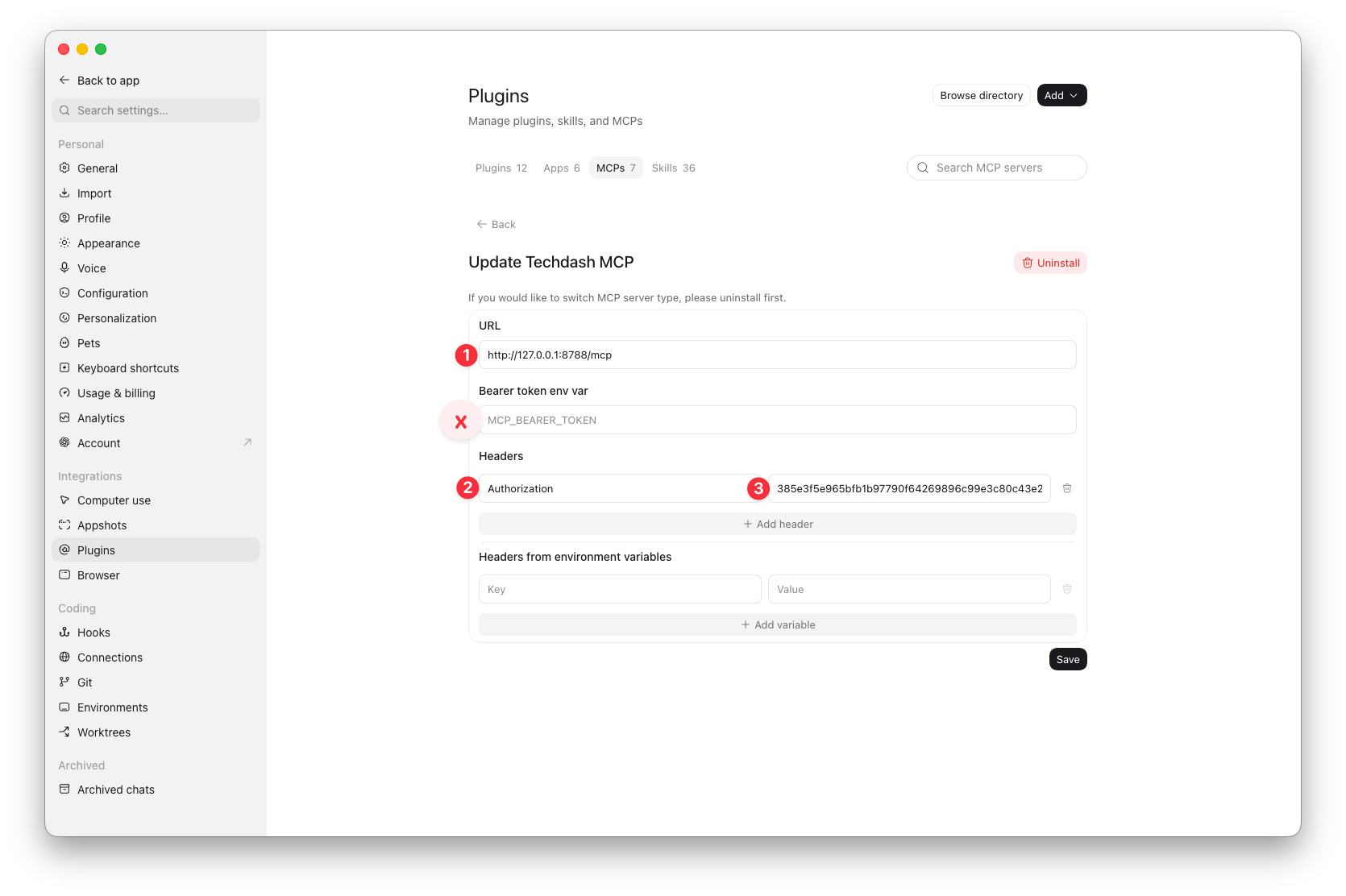
This is the ChatGPT Desktop Plugins screen after TechDash is added. 1 is the local URL (http://127.0.0.1:8788/mcp by default). Leave Bearer token env var empty: that field is a variable name, not the token. The X marks the usual mistake of pasting the access token there. 2 and 3 are the Authorization header. The key is Authorization. The value is Bearer plus the access token from TechDash, with a space after Bearer. In Codex or other TOML, quote that whole value: Authorization = "Bearer <token>". Save, restart ChatGPT Desktop, then type /mcp in a Chat, Codex, or local Work thread on this computer.
Expected result: /mcp lists TechDash tools, and ChatGPT Desktop can read local websites and incidents.
ChatGPT on the web versus ChatGPT Desktop
ChatGPT Desktop on this computer can reach http://127.0.0.1. That includes Chat, Codex, and a Work task that runs locally in the desktop app after you approve local-network access.
ChatGPT in a browser, hosted cloud Work, and workspace agents run on OpenAI's servers. They cannot open http://127.0.0.1 on your computer. TechDash does not offer a cloud connector or an OAuth consent screen, so no authorization prompt will appear in those hosted sessions.
If a hosted Work task says TechDash is not exposed or not authorized for the workspace, that is expected. Ask again in ChatGPT Desktop on this computer, or use Claude Desktop.
Connect Claude Desktop
Do not paste http://127.0.0.1:8788/mcp into Claude's connector URL field. That field is for a public HTTPS server. Claude will say the URL must start with https://. Even an https://127.0.0.1 address would fail, because Custom Connectors run through Anthropic's cloud and cannot open this computer.
- Turn on AI Access and wait until Status is listening.
- Select Copy Claude Desktop config.
- In Claude Desktop, open the developer MCP server config (
claude_desktop_config.json). - Paste the copied JSON so
mcpServers.techdashis present. - Restart Claude Desktop.
The copied config starts TechDash's packaged stdio bridge on this computer. That local process talks to http://127.0.0.1. If TechDash is quit, Claude tools return a message that TechDash is not running.
Claude on the web has the same HTTPS-only connector field. It cannot use this local server.
If Claude says it could not start TechDash for Cowork or Code sessions because the request timed out, the usual cause is Claude launching a second copy of the local server and waiting too long. Ask in a normal Chat session first. Recopy the Claude Desktop config from TechDash (development copies now prefer Node instead of Electron) and restart Claude Desktop. Anthropic's Cowork path is unreliable with local stdio MCP servers.
Listen on the local network
Listen on Local Network binds the server so other devices on your LAN can use the same token and port. The connection is HTTP, not HTTPS. A hostile network can sniff the token.
Keep this Off unless you need it. When it is On, Status also shows a LAN URL. Other devices still need the token.
What the tools can do
Read tools can list websites, incidents, pages, and ignore rules, load site resources without file bodies, and load the Health Report. Stored before/after HTML is not attached to incident lists. Use the HTML tool when you need those bodies. It returns 2,000-character chunks by default, with an offset so the client can page through a large page.
Write tools change this computer's TechDash database immediately. There is no second in-app confirmation:
- Resolve or unresolve an incident
- Ignore a check for this URL, this website, or all websites
- Clear an ignore rule
- Add a monitored page on an existing website (the path or URL must use that website's host)
- Remove a monitored page
TechDash does not include secrets in tool output. License keys, Google tokens, webhook URLs, Basic Auth passwords, and Shopify signatures are out of scope.
Not available through AI Access yet: delete a website, connect Search Console, test webhooks, create custom checks, pause or resume monitoring, or Check & Verify.
Checklist
Use this after you change Settings:
- TechDash is open or in the tray, with a usable license.
- AI Access is On and Status is listening.
- Listen on Local Network is Off unless you intended LAN access.
- ChatGPT Desktop uses the Streamable HTTP URL plus an Authorization header whose value starts with
Bearer. Bearer token env var is empty. - Claude Desktop has the copied JSON and can reach TechDash while the app is running.
- A read such as listing websites succeeds.
- A write such as resolve or add URL only runs when you want a real change.
- Asking for incident HTML returns chunks, not a full dump on the incident list.
Limitations
- Closing the main window is fine. Quit TechDash stops AI Access.
- Unlinking or locking the license stops the server.
- Changing the token with Rotate requires updating each client.
- Large HTML must be requested in chunks.
- Model replies are not stored back into TechDash.
- ChatGPT in a browser and hosted cloud Work cannot use this local server. ChatGPT Desktop on this computer can.
- Claude's connector URL field requires
https://and cannot use this local HTTP server. Use the copied Claude Desktop stdio config instead. - Claude Cowork and Code sessions may time out while starting a second copy of the local server. A normal Chat session can still work.